Automatic payments let Register.ly use your default saved payment method to pay eligible invoices before they are due. You can add a credit card, manage your default payment method, and turn automatic payments on or off from the Register.ly Client Area.
Before you begin
- Sign in to the correct customer account at the Register.ly Client Area.
- Use a private device and a secure connection.
- Have the credit card and billing details you want to save available.
- Review any unpaid invoices separately because an invoice may require action even when automatic payments are enabled.
Add a new credit card
- Sign in to the Register.ly Client Area.
- Open Account Details.
- Select Payment Methods.
- Select Add New Credit Card.
- Enter the requested card and billing details in the secure form.
- Review the information and submit it.
- Return to Payment Methods and confirm that the saved method appears correctly.
For security, the Client Area does not display your complete card number after it is saved. Never send your full card number, security code, password, or two-factor authentication code in a support ticket.
Change your default payment method
If more than one payment method is saved, select the method you want Register.ly to use as the account default. Confirm the default indicator before leaving the page. Changing the account default may not replace a payment method already selected on an existing invoice, so open any unpaid invoice and review it separately.
Turn automatic payments on or off
- Go to Account Details > Payment Methods.
- Find the Automatic payments section below your saved payment methods.
- Use the switch to change the setting to ON or OFF.
- Wait for the confirmation message showing that automatic payments are now on or off.
- Review the page before signing out and make sure the displayed setting matches your choice.
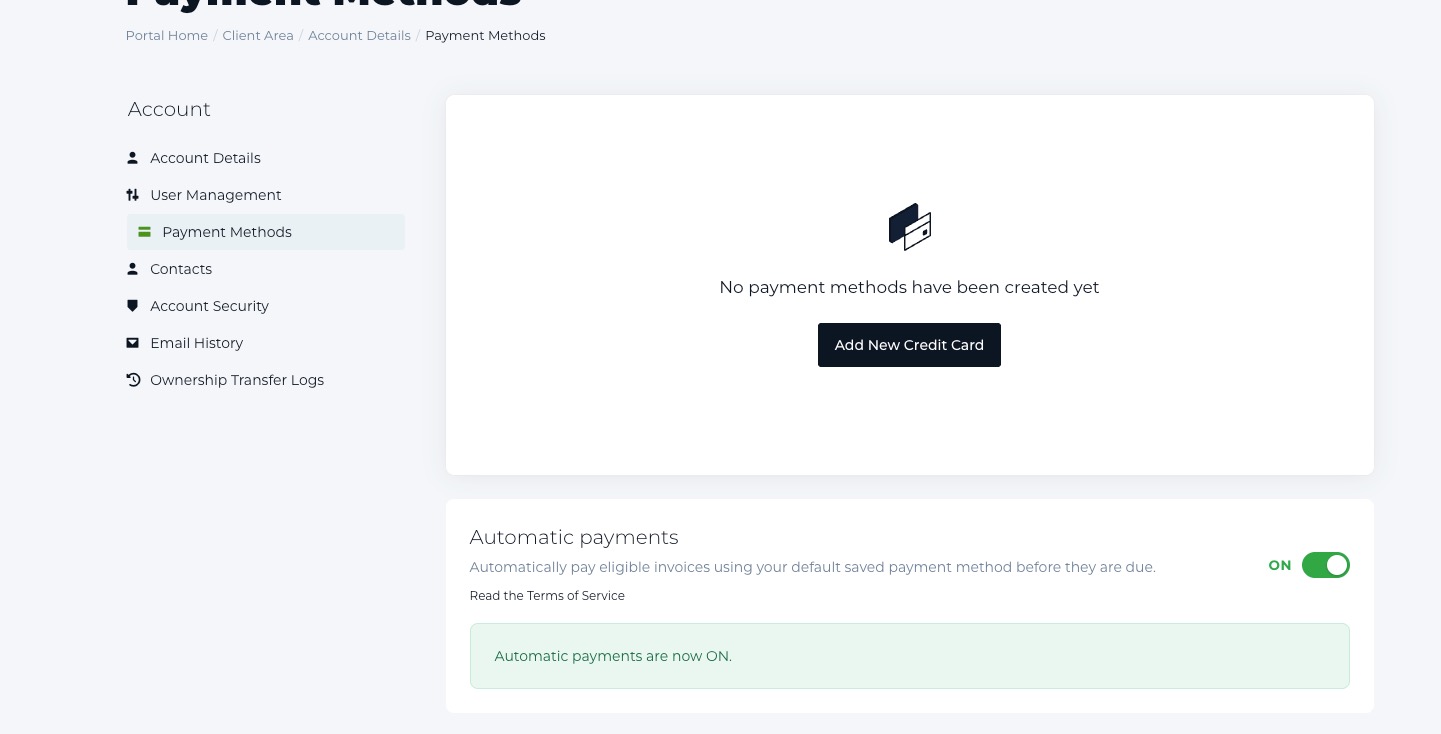
How automatic payments work
- Automatic payments use your default saved payment method.
- The setting applies only to invoices that are eligible for automatic payment.
- An ON setting does not guarantee that every invoice will be paid. A missing or declined payment method, an ineligible invoice, or an account restriction can still require manual action.
- Continue to monitor invoice statuses and payment notices in the Client Area.
- Read the Register.ly Terms of Service before enabling the feature.
If an automatic payment does not complete
- Open the affected invoice and check its current payment status.
- Confirm that your saved card is valid and selected as the default payment method.
- Check that the billing details match the information held by your card provider.
- Look for a payment notice or error message in the Client Area and your account email.
- If the invoice remains unpaid, pay it manually using an available method or contact Register.ly support.
Frequently asked questions
Does turning on automatic payments pay every invoice?
No. The Client Area states that the feature pays eligible invoices using your default saved payment method. Check every invoice and its status rather than assuming payment has completed.
Can I turn automatic payments off?
Yes. Return to Account Details > Payment Methods and switch Automatic payments to OFF. Confirm that the page displays the updated state. You remain responsible for paying invoices by their due dates.
Why is the Payment Methods option unavailable?
Payment options can depend on your account, permissions, currency, and the payment methods currently offered. Confirm that you are signed in to the correct account. If the control is still missing, open a support ticket instead of sending payment details by email.
When to contact support
Contact Register.ly support if you cannot add a payment method, the automatic-payment setting does not update, or an eligible invoice remains unpaid. Include the invoice number and the exact non-sensitive error message. Do not include your full card number, security code, password, or authentication code.
Wallet payments and automatic payments
A one-time Apple Pay or Google Pay payment does not by itself confirm that future invoices will be paid automatically. Automatic payments depend on an eligible default saved payment method and the Automatic payments setting shown in Client Area.
If a wallet payment is available, confirm the current invoice separately. Then return to Account Details > Payment Methods and verify the saved default method and Automatic payments state instead of assuming the wallet enrolled the account.
- How to Pay with Apple Pay on Register.ly
- How to Pay with Google Pay on Register.ly
- What Payment Methods Does Register.ly Accept?
Related articles
- How to View, Download, and Pay an Invoice
- How to Open and Manage a Support Ticket
- How to Reset Your Register.ly Client Area Password